Python is installed with the installation of Visum. This private installation can be found in the installation directory of Visum in the subfolder \Exe\Python\.
To determine the version of the private installation, either invoke the Python Console from the Scripts menu in Visum or use the Windows command prompt:
To do this, navigate to the Python directory of the Visum installation:
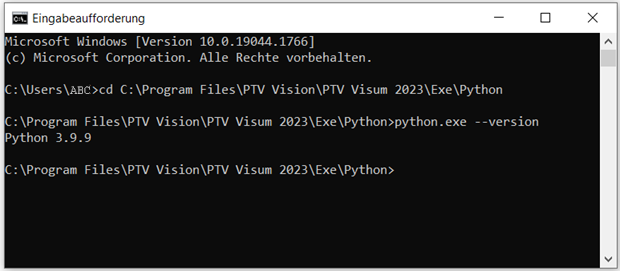
Enter the command python.exe --version.
To get a list of libraries installed under Visum, use the command:
python.exe -m pip list
Note that pip is not included with Visum by default and you will need to install Python outside of Visum to use it.
For general information on installing Python, other packages, and creating virtual environments, see the page:
https://packaging.python.org/en/latest/tutorials/installing-packages/
The following are basic instructions for using Python with Visum.
Python installation (outside of Visum)
A Python installation outside of Visum is required if you need libraries that are not included in the delivery scope of Visum. In this case, download a Python setup of the same Python version as in Visum (e.g. from www.python.org) and run a standard installation. By default, this Python installation includes a pip.exe file that you need to install additional packages.
Creation of scripts for use with Visum
There are different variants to create script code for use with Visum:
- Use of the Python Console
- Start of Visum from external programs (e.g. Python, VBA) and control via COM
The first variant is particularly suitable for testing short scripts, and the second variant is for creating or debugging longer scripts.
If you use Python installed outside of Visum for the second variant, it is necessary to install the PyWin32 package with pip.exe. To do this, navigate to the Python directory of the Python installation and install:
python.exe –m pip install pywin32
Start Visum with Python
If you want to start and control Visum from outside via COM, a Visum instance is started with the following command:
import win32com.client
Visum = win32com.client.gencache.EnsureDispatch('Visum.Visum.240')
|
Tip: If there are problems with the Python cache, you can alternatively use the following command Visum = win32com.client.Dispatch('Visum.Visum.240'). |
Using a private Python installation from Visum in external scripts
To create scripts or test scripts that will later be executed within Visum, e.g. as procedures, you can also access the private Python installation under Visum. The following two options are available for this purpose:
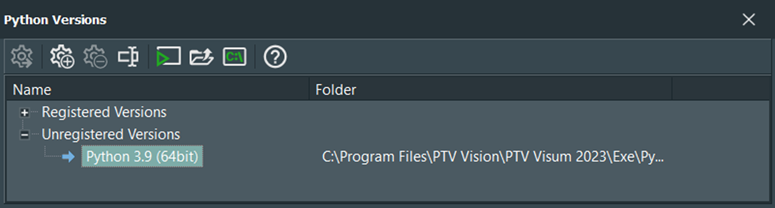
First option (recommended): Include the private Python installation from Visum in your application (e.g. PyScripter) by enabling this Python version.
|
Note: Make sure that you use a 64-bit IDE compatible with the Python installation under Visum. |
Second option: Copy the module 'syspath.py' from the Visum installation directory ...\Exe\Python\Lib\site-packages\VisumPy\ to the directory of your own script and add the following lines to the beginning of your script:
import SysPath
successful = SysPath.ChangePythonSysPath("240")
In both variants, you have access to the modules, among others VisumPy, which contains important help functions for working with Visum (see COM Help under menu Help), e.g. for starting a Visum instance:
import VisumPy.helpers as VPH
Visum = VPH.CreateVisum(240)
A Python installation outside of Visum is not necessary for this.
However, if you alternatively use another external registered Python version, e.g. in PyScripter, importing syspath.py causes modules from the private Python installation to be used under Visum, e.g. by import VisumPy.helpers as VPH or import numpy.
Addition of further libraries for use in scripts
If you need other packages besides the libraries installed under Visum, proceed as follows:
1. Install a separate Python instance. It contains a pip.exe by default.
2. Also, download the required library.
3. In the Windows command prompt, navigate to the directory of the Python version installed externally by Visum.
4. Install the library with the command:
python.exe -m pip install --user –ignore-installed <paketname>
This means that this library is available globally and can thus also be found under Visum. However, if you use Python for other projects outside of Visum, it is recommended that you create a virtual environment to use for your projects under Visum.
Updating libraries of the private Python installation of Visum is not recommended, as the add-ins shipped with Visum may be affected by the changes and thus their functionality is no longer guaranteed.
If you use your own libraries and these are required for automated calculations in the Visum model, it must also be ensured that the libraries are available when the model is passed on.
Global installation of additional or newer libraries may affect the functionality of add-ins shipped with Visum.
Use of virtual environments in Visum
If your projects with Visum require specific Python modules, creating virtual environments with venv is recommended. The virtual environment must be compatible with the main version of the private Python installation under Visum.
In the user settings (Edit menu > Work environment > Script files), you can select the directory of a virtual environment to use in Visum. Be aware that changing the directory requires a restart of Visum.
Again, if the model is passed on, smooth calculation is only guaranteed if a corresponding virtual environment is also available on other computers.
|
Note: After each execution of a Python script, the path that sets the directory of a virtual environment is set to the following sequence of paths:
|
Documentation and example data
The directory ...\User\Public\Public documents\PTV Vision\PTV Visum 2024\COM\Examples_ComDocu\Python in your Visum installation contains sample files in Python.
The COM help contains documentation of the Python library VisumPY, which contains help functions important for Visum. You can open the COM help from within Visum via the menu Help > COM Help.

