Bing™ Satellite Imagery
PTV Vistro includes a fully licensed internet feed from Bing™ that includes satellite aerial images and map labels. You can toggle these on and off using the My Network, Labels and Aerial Images (see section Network Window). These maps assist with orientation, network drawing and display.
Upon opening (with a live internet connection), PTV Vistro will display the Bing™ maps live feed. With the Bing™ maps, there are display options:
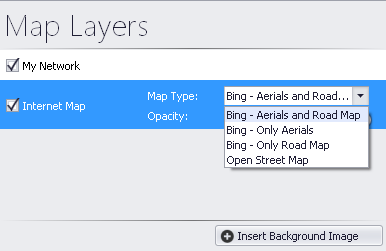
- Bing - Aerials and Road Map
- Bing - Only Aerials
- Bing - Only Road Map
Select the display options
1. Go to the Map Layers dialogue.
2. Hover over the Internet Map option.
3. Select the Map Type from the drop-down menu.
4. In addition, the opacity of the map layer can be adjusted by dragging the opacity slider to the left (-) for less transparency or right (+) for more transparency.
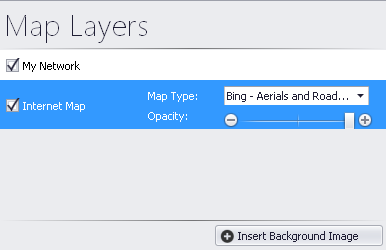
5. Select the display option.
6. Zoom to the study area location in the Network window with the Bing™ maps background to begin building your network, using the zoom and pan functions.
X-Y coordinates of elements coded with Bing™ maps use Spherical Mercator.
PTV Maps
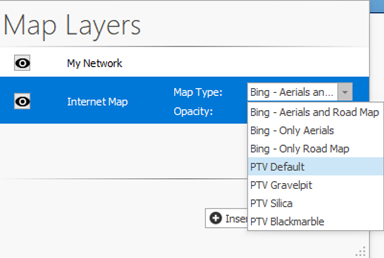
PTV Vistro includes the ability to use PTV Maps in four color shades as a background in place of Bing™ Maps.
1. Go to the Map Layers dialogue.
2. Hover over the Internet Map option.
3. Select one of the PTV Map options from the Map Type drop-down menu.
x-y coordinates of elements coded with PTV Maps use the Spherical Mercator coordinate system.