ITE Trip Gen App API
PTV GROUP is an authorized partner of ITE to use the API to the ITE TripGen web-app. Users of this API must own a single-user licenses to the ITE TripGen web-app and accept the terms and privacy documents from ITE and acknowledge the API usage agreement by PTV GROUP during the login process. PTV GROUP does not maintain the ITE TripGen web-app or web-app API. ITE is solely responsible for the support, operation, and date returned to the user.
This API requires internet access.
Access the API
In the upper right corner of the Trip Generation workflow, there is a link indicating the ITE TripGen web-app API log-in status:
1. Click the link ITE TripGen log in.
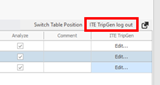
You can click it again to logout.
The ITE TripGen web-app API Legal Statement is opened:
Figure 21: ITE TripGen web-app API Legal Statement
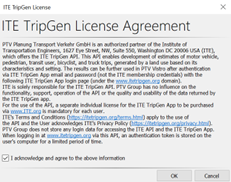
2. Click OK.
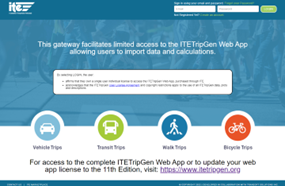
The official ITE TripGen web-app API web-page will open in your default browser.
3. Sign in with your own ITE TripGen web-app log-in credentials.
Once log-in is confirmed, close the browser, and return to PTV Vistro.

|
Notes:
|
ITE TripGen web-app API login page
4. To access the API’s PTV Vistro Dialog click on the Edit link in each zone’s data row or right-click on each data row to open the context menu.
Figure 22: Opening the ITE Trip Generation web-app API Dialog

5. Complete the form from top to bottom using ITE look up data to return your Trip Generation result from the ITE Trip Gen App.
Parameters for this dialog can be found in the ITE Trip Gen App help on ITE’s website. The API will return parameters available for each land use as the user goes through the form.
Figure 23: PTV Vistro’s ITE Trip Gen App API dialog
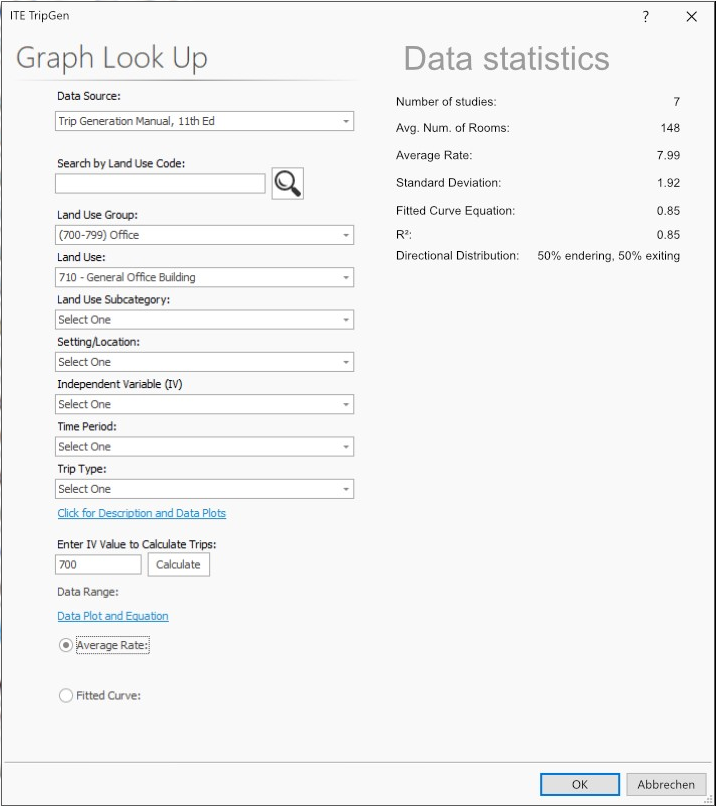
6. After the form is completed, click the Calculate button.
7. Select either the trips generated by the Average Rate or the Fitted Curve method by using the radio buttons.
8. Click OK.
Data from your method selection will automatically be transferred to the PTV Vistro Trip Generation table for the zone’s trip generation.
PTV Vistro will automatically select the Rate Data Type if Average Rate method is used or select Trips if the Fitted Curve method is used. All data from the PTV Vistro ITE Trip Gen API dialog will transfer.
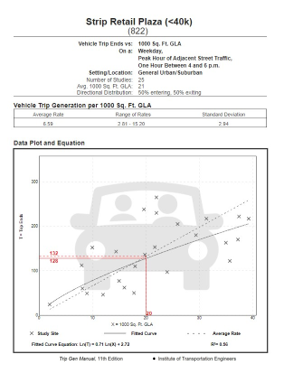
Data Plots and Equation can be reviewed to see the sample size, equation, R2 value, and data scatter plot points. This information will open in your default web browser.
Additionally, the land-use description can be reviewed with the Click for Description and Data Plots link.
Figure 24: Data Plots and Equations sample