After the Trip Generation and Trip Distribution have been defined, you can assign your development trips to the network in the Trip Assignment step. Here, you define the allocation of the shares of trips to take specific paths between each zone and gate / zone and zone pair. Figure 21: Trip Assignment Table with calculated Vehicle Miles or Kilometers Traveled shows the interface.
Figure 21: Trip Assignment Table with calculated Vehicle Miles or Kilometers Traveled
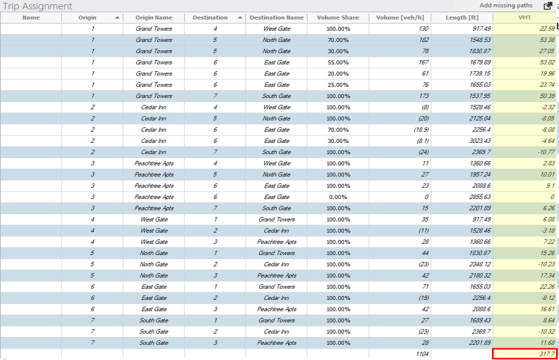
The table above will show any Paths already created in your network, including those created using the Path tool, as described above (see sectionDefine Paths for Assigning Development Traffic to your Street Network).
You will complete the Trip Assignment in two steps:
- Add all Paths for your Trip Assignment.
- Define the Volume Share for each Path.
Add Paths for your Trip Assignment
You can add Paths as described above, using the Path tool. In addition, in the Trip Assignment step, you can also use the Add Missing Paths function, which will look for any Zone-Zone and Zone-Gate pair that does not currently have at least one Path defined and generate the shortest distance path for that pair.
This is useful if you want to generate an initial set of Paths without using the Path tool. It is also useful if you add Zones and/or Gates and need to provide at least one Path between the new Zones & Gates.
When a row is selected in the Trip Assignment Workflow Table, the corresponding path is displayed visually in the network window (Figure 22: Path Graphical Representation of Trip Assignment Row Selected).
Figure 22: Path Graphical Representation of Trip Assignment Row Selected
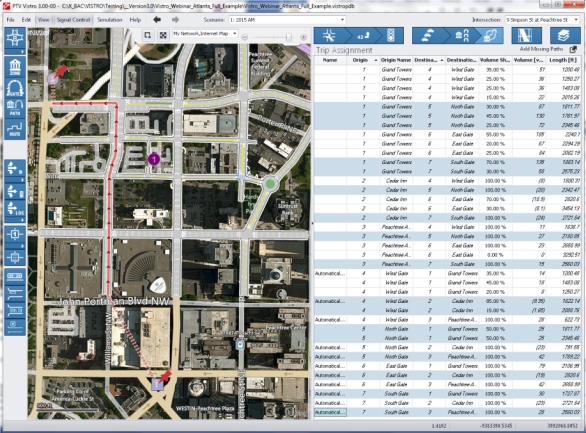
The volume share (path percentages) entered here are applied, along with the trip generation data entered in the Trip Generation Workflow Task Table (see section Trip Generation.) and the trip distribution data entered in the Trip Distribution Workflow Task Table (see section Trip Distribution), to determine the traffic assignments on the network.
The Trip Assignment Parameters are described in the following table:
Table 18: Trip Assignment Parameters
|
Parameter |
Description |
|
Name |
Path Name: enter it directly in the cell. For those paths that are generated through the Add Missing Paths function, the default name is “Automatically generated” but this can be edited. |
|
Origin |
Start of the Trip Assignment Path Zone / Gate Number |
|
Origin Name |
Start of the Trip Assignment Path Zone / Gate Name |
|
Destination |
End of the Trip Assignment Path Zone / Gate Number |
|
Destination Name |
End of the Trip Assignment Path Zone / Gate Name |
|
Volume Share, % |
Percent of volume for that Zone-Zone or Zone-Gate pair assigned to the specific Path |
|
Volume |
Volume for that Zone-Zone or Zone-Gate pair assigned to the specific Path. The sum of volumes are listed in the summary row at the bottom of the trip assignment table. |
|
Length, ft or m |
Length of the Path measured from the network entry point to the network exit point (it does not include the distance from the network end points to the Zone / Gate) |
| VMT or VKT |
Vehicle Miles Traveled (VMT) or Vehicle Kilometers Traveled. Vistro will automatically calculate the VMT or VKT (depending on the working units) along each Path in the Trip Assignment tab for both Trip Generation Zones being added or subtracted from the network. The summary row at the bottom of the trip assignment table will report the total change in VMTs or VKTs along all of the Path assignments in the current scenario. |
