Editing a PT line stop
You can edit specific attributes of PT stops for a PT line or partial PT route in the Edit PT Line Stop window.
|
|
Note: Alternatively to in the PT Line Stop window, you may also show and edit PT line stop attributes in the PT line stops list (as a relation of a PT stop attribute list). |

1. On the network object sidebar, click Public Transport Stops or Public Transport Lines.
2. In the network editor, right-click the PT stop.
3. If a public transport stop is serviced by one PT line only, on the shortcut menu, click Edit PT Line <No. > PT Stop <No.> Pass<No.>.
4. If a public transport stop is serviced by multiple PT lines, on the shortcut menu, click Edit PT Line Stop. Then select the desired line stop > PT Line <No. > PT stop <No.> Pass <No.>.
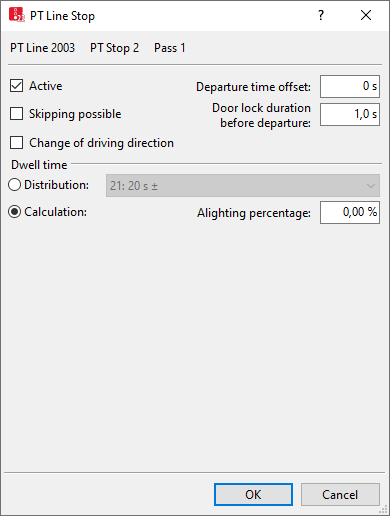
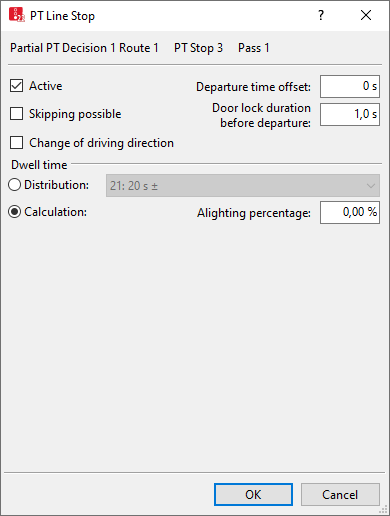
A PT Line Stop window opens with attributes that depend on the network object the PT line stop refers to:
- For PT stops of a PT line, the number of the line is shown:
- For the PT stops of a partial PT route, the number of the routing decision and the number of the route are shown:
- For a PT stop in Viswalk, additional attributes are displayed. These settings allow you to simulate passengers boarding and alighting at this stop with Viswalk:
- The PT stop must be selected in the For PT stop(s) attribute of the area you want to use as a waiting area or platform edge.
- In the Public Transport Usage attribute of the area, Platform edge or Waiting area must be selected.
- The attribute PT stop active must be selected.
Determining public transport dwell time
The public transport dwell time for PT lines and PT routes can be determined via the following methods:
- Method Dwell time distribution: (Defining dwell time according to dwell time distribution)
- Method Advanced passenger model: (Calculating dwell time according to the advanced passenger model)
- Method VISWALK: microscopic pedestrian simulation: (Calculating dwell time with PTV Viswalk)
You can use different methods at different PT stops. However, only one method is used for PT lines or PT partial routes at a PT stop.
Showing PT line stop attributes as a relation of a PT stop
1. On the Lists menu, click > Public Transport > Stops.
The list with the attributes is displayed as the left list of two coupled lists (Using coupled lists).
2. On the list toolbar, in the Relations list, click Public transport line stops.
The list on the right contains attributes and attribute values of network objects, and/or base data allocated to the network object selected in the list on the left (Using coupled lists):
|
Column |
Description |
|---|---|
|
PTLine |
Name of PT line that services the PT line stop. |
|
Public transport stop |
Number and name of public transport stop of the PT line stop |
|
Active |
A public transport stop created in the Vissim network according to the definition of PT lines is not automatically contained in a PT line path, even when placed on a link that is traversed by a PT line. You can enable the Active attribute to include the public transport stop into the PT line path. If a PT stop is not to be serviced by a PT line, disable its Active attribute. If the Change of driving direction attribute is selected for an active public transport line stop, the stop is displayed in the color of the Active direction-change-stop color graphic parameter. |
|
SkipPoss |
Skipping possible:
A public transport stop bay can only be fully skipped if both of these are directly connected to the link, from which the PT vehicle is coming. If the network structure is more complex or if the PT vehicle has already reached the public transport stop bay or the connector, when the 50 m mark is passed, the bay is passed without making a stop. Skipped public transport stops are reported in the Vehicle Records file with its identifier and recorded as having a public transport stop dwell time of 0 seconds. |
|
Change of driving direction: If the public transport vehicle leaves the PT stop in the direction it came from, its attribute Direction of travel is still Forward, as the direction of travel corresponds to the overlapping link in the opposite direction. The Turned attribute of the vehicle is selected. Turn signal and 2D/3D model are displayed in reverse direction. |
|
|
DepOffset |
Departure time offset: Scheduled departure time at this stop relative to the departure time defined for the PT line for this journey (= scheduled journey time between the first line stop and this stop). If the PT line's slack time fraction is defined as less than 1, the vehicle can also depart earlier accordingly. The time offset is used additionally for boarding and alighting time (boarding/alighting). The resulting departure time is calculated as follows: Simulation second of arrival + dwell time + max (0, ((departure time of PT line + departure offset) - (simulation second of arrival + dwell time)) • slack time fraction of PT line) If the departure time, according to the time table, is later than the point in time, which is the sum of the arrival time and dwell time, the PT vehicle waits until the departure time, according to the time table if the Slack time fraction equals 1. Value range from 0.00 to 1,00. If the Slack time fraction of the line is 0.00, the timetable will not be taken into consideration. In this case, the settings in the range dwell time are taken into consideration for the calculation of the Dwell time. The timetable is taken into account, if the time offset attribute of the public transport line is > 1. For line stops in PT partial routes, the following applies:
|
|
PedsAsPass |
Pedestrians as passengers: Pedestrians of an area are used as passengers for public transport. The area is a waiting area or a platform edge. The area is assigned at least one PT stop. |
|
DwellTmDef |
Dwell time definition depends on the method used for calculating public transport dwell time (Defining dwell time according to dwell time distribution), (Calculating dwell time according to the advanced passenger model), (Calculating dwell time with PTV Viswalk) PT vehicles depart once the minimum dwell time runs out. PT vehicles also depart if the minimum dwell time = 0 seconds when all alighting passengers have alighted. In addition, you can select the option Late boarding possible for each line stop.
All settings for the dwell time apply for the line stops of a PT partial route. |
|
Alighting composition |
Composition of the PT-passengers (Defining pedestrian compositions). Within the PT vehicle, the Pedestrian types, corresponding to the selected composition, are generated and the given percentage set is used. |
|
Alighting location |
Alighting location: Distribution of the alighting passengers at the doors of the PT vehicle at this public transport stop (Using location distributions for boarding and alighting passengers in PT). Within the PT vehicle, the alighting passengers at this PT stop are distributed to the vehicle doors based on the selected Alighting composition. If areas without passengers are defined on the 2D/3D model segments of the public transport vehicle, these areas are excluded from the distribution. |
|
Alighting possible left, Alighting possible right, Boarding possible, left, Boarding possible, right |
Allow or disallow boarding and/or alighting on the right and left. The arrow in the schematic drawing of the public transport vehicle shows the direction of travel. |
|
Late boarding possible |
To ensure that the PT vehicle departs exactly at the time calculated, in case the option is not selected, no passengers can board the PT vehicle as soon as the doors begin to close. The doors also close when a passenger boards immediately before the doors begin to close. |
|
Alighting percentage |
Percentage of the passengers, which will alight at this public transport stop. This value serves the volume-dependent calculation of the stop time. |
|
Door lock duration before departure |
DoorLockDurBefDep: This dwell time of the PTV vehicle is the time until departure of the vehicle after the doors have been fully closed. Default 2.0 s |
|
Door closure delay |
DoorClosDel: Time after which the last pedestrian has walked through doors until the doors begin to close. Default value 3.0 s. If the option Late boarding possible is selected at the line stop, the door closer’s delayed mode will only start, if the boarding delay is no longer effective.(Calculating dwell time with PTV Viswalk). If the option Late boarding possible is not selected at the line stop, the door closer’s delayed mode will start after the last pedestrian has walked through doors. |
 If the option is selected, the public transport stop for the current PT line or PT partial route is activated.
 If the option is not selected, the public transport stop is not operated and is shown in green. The color is based on the graphic parameter